How to set up Blank Spaces
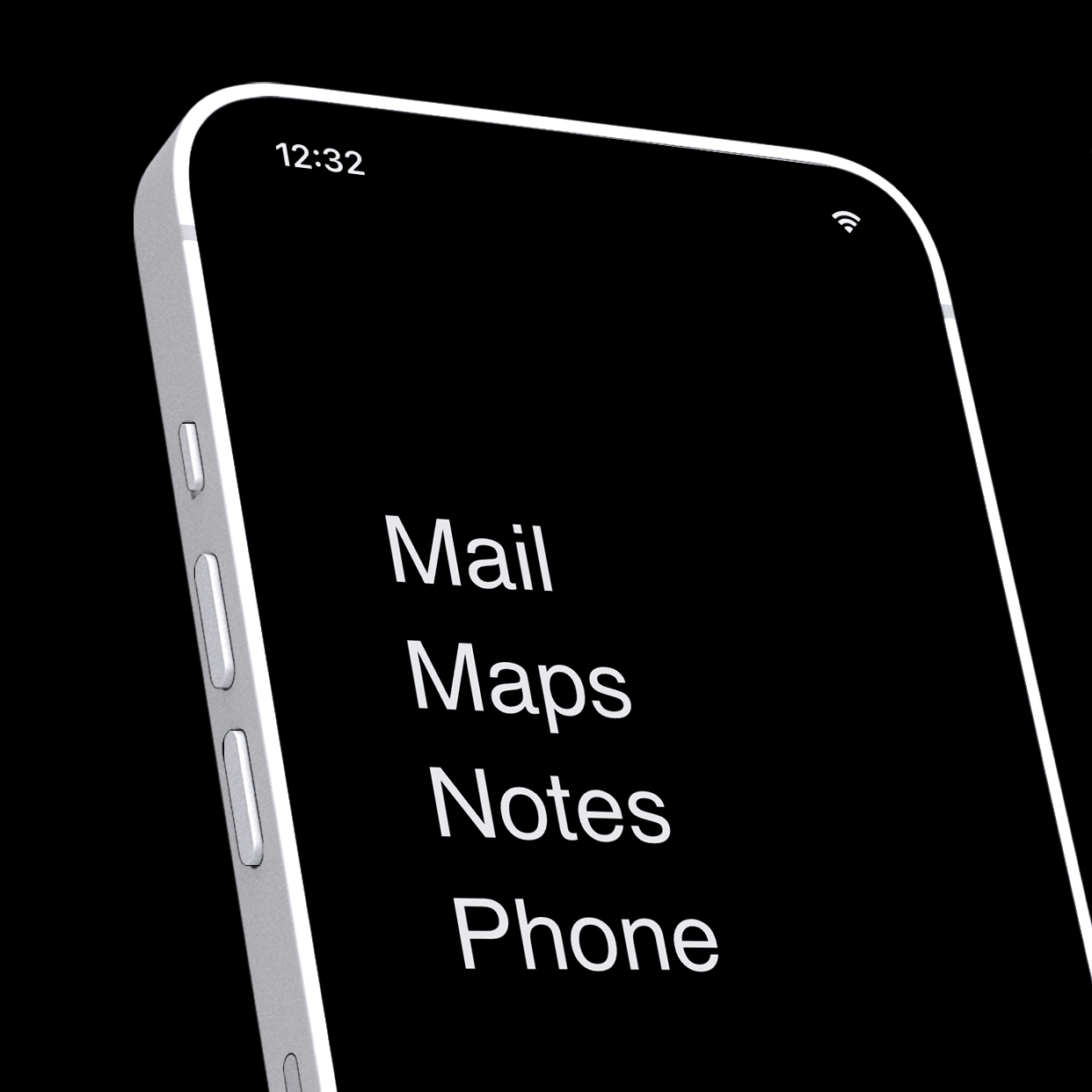
Blank Spaces replaces your iPhone home screen with a minimalist, distraction-free launcher. This 5-minute guide walks you through the complete setup.
Why is this important?
People spend over 5 hours on their phones every day, much of it unintentional, pulled in by colorful icons, badges, and notification dots. Blank Spaces is a minimalist iOS launcher that replaces your home screen with a clean, distraction-free interface. Your apps are still there when you need them. They’re just no longer screaming for your attention.
Set up Blank Spaces in 3 steps
Each step links to a detailed guide with screenshots if you need more help.
1. Add the Blank Spaces widgets
Blank uses two widgets, a medium one for the top of your home screen and a large one for the bottom, to display your chosen apps as a clean text list.
2. Hide the dock and widget borders
By default, iOS shows the dock (the row of four apps at the bottom of the screen) and a translucent border around widgets. Hiding both gives you the fully-clean Blank look. The exact steps depend on your iOS version:
iOS 26: Full instructions →
iOS 18: Full instructions →
3. Hide your other home screen pages
By default, iOS keeps all your old home screen pages visible. Without hiding them, swiping left or right will still reveal all your apps and Blank will feel like just a widget instead of a full home screen.