How to add the Blank Spaces widgets
Add the Blank Spaces launcher widgets to your iPhone home screen in under a minute. Step-by-step guide for iOS 18 and iOS 26.
Video tutorial
Blank Spaces uses two widgets to replace your home screen: a medium widget for the top half and a large widget for the bottom. Here’s how to set them up.
1. Open the widgets menu
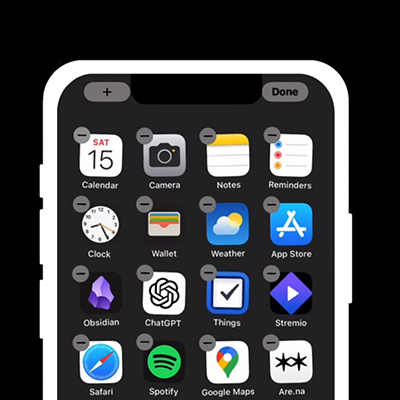
Long-press on an empty area of your home screen until the apps start to jiggle. Tap the Edit button (top left), then tap Add Widget.
2. Search for “Blank” and add the widgets
Type Blank in the search bar. Look for the minus sign logo.
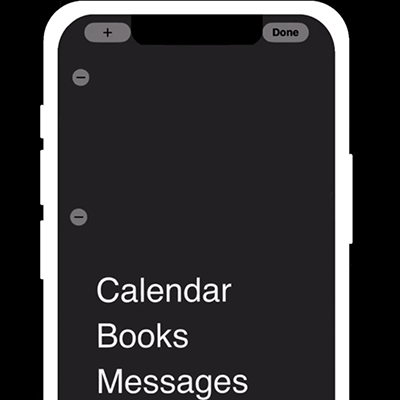
Add the medium widget (top section) and the large widget (bottom section) to your home screen. Tap the + button on each one.
3. Switch to large icon mode
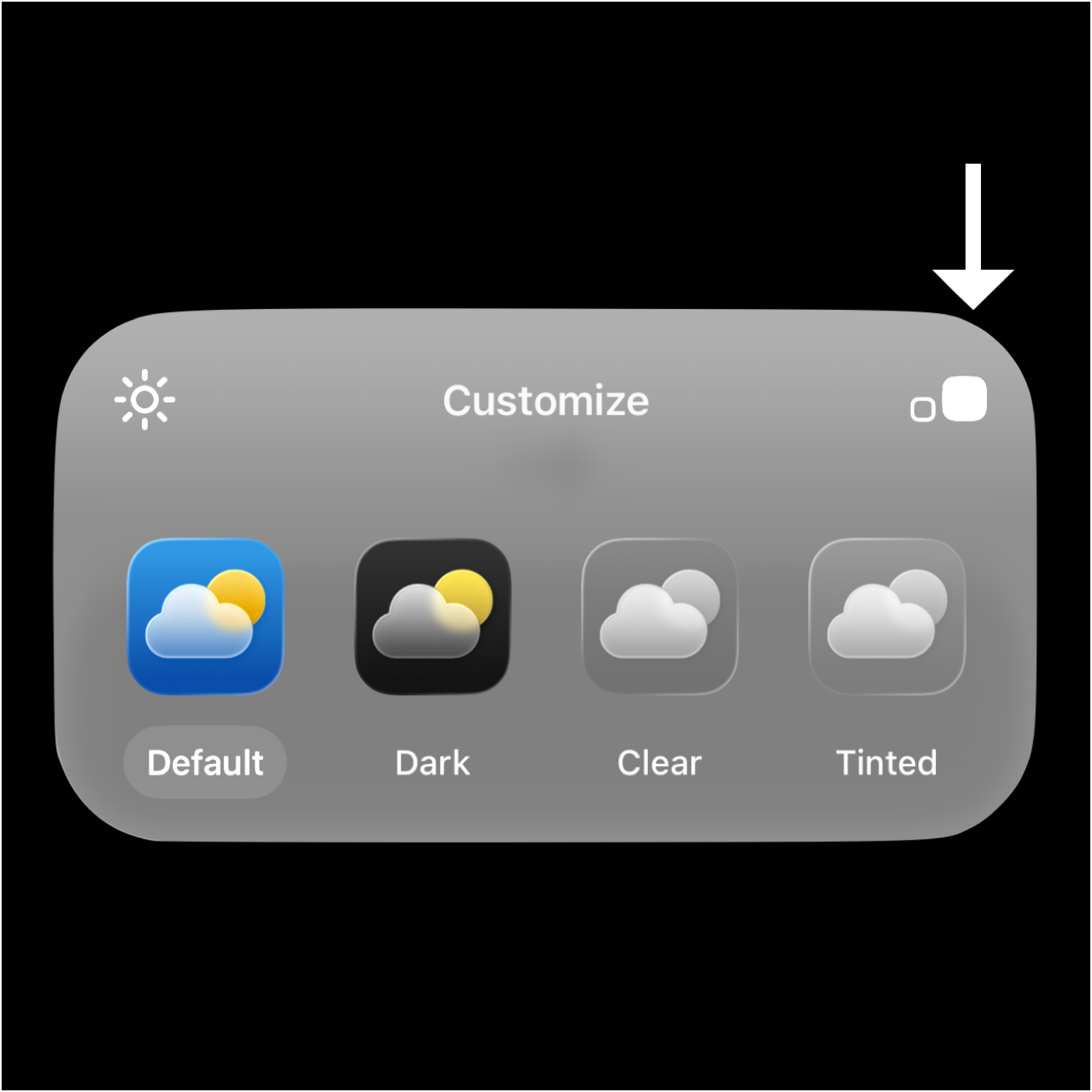
On your home screen, long-press, then tap Edit > Customize. Tap the large square on the right.