How to add a custom shortcut or deep link
Add apps that aren't in the default list to Blank Spaces using Apple Shortcuts or URL scheme deep links.
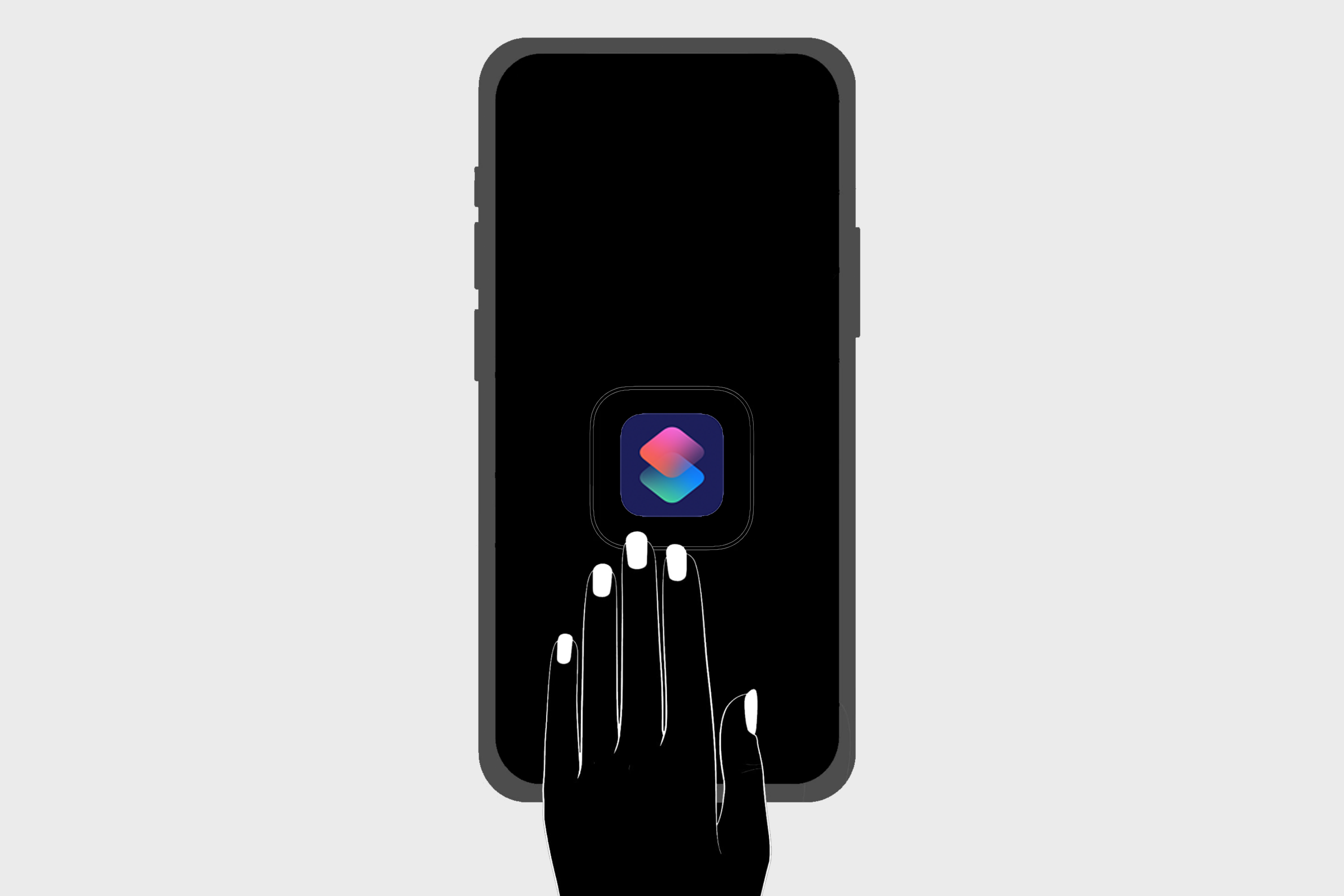
We suggest enabling our Auto Launch plugin instead of using this method.
You can also add custom apps by routing through Apple Shortcuts, or using a deep link.
Using Apple shortcuts
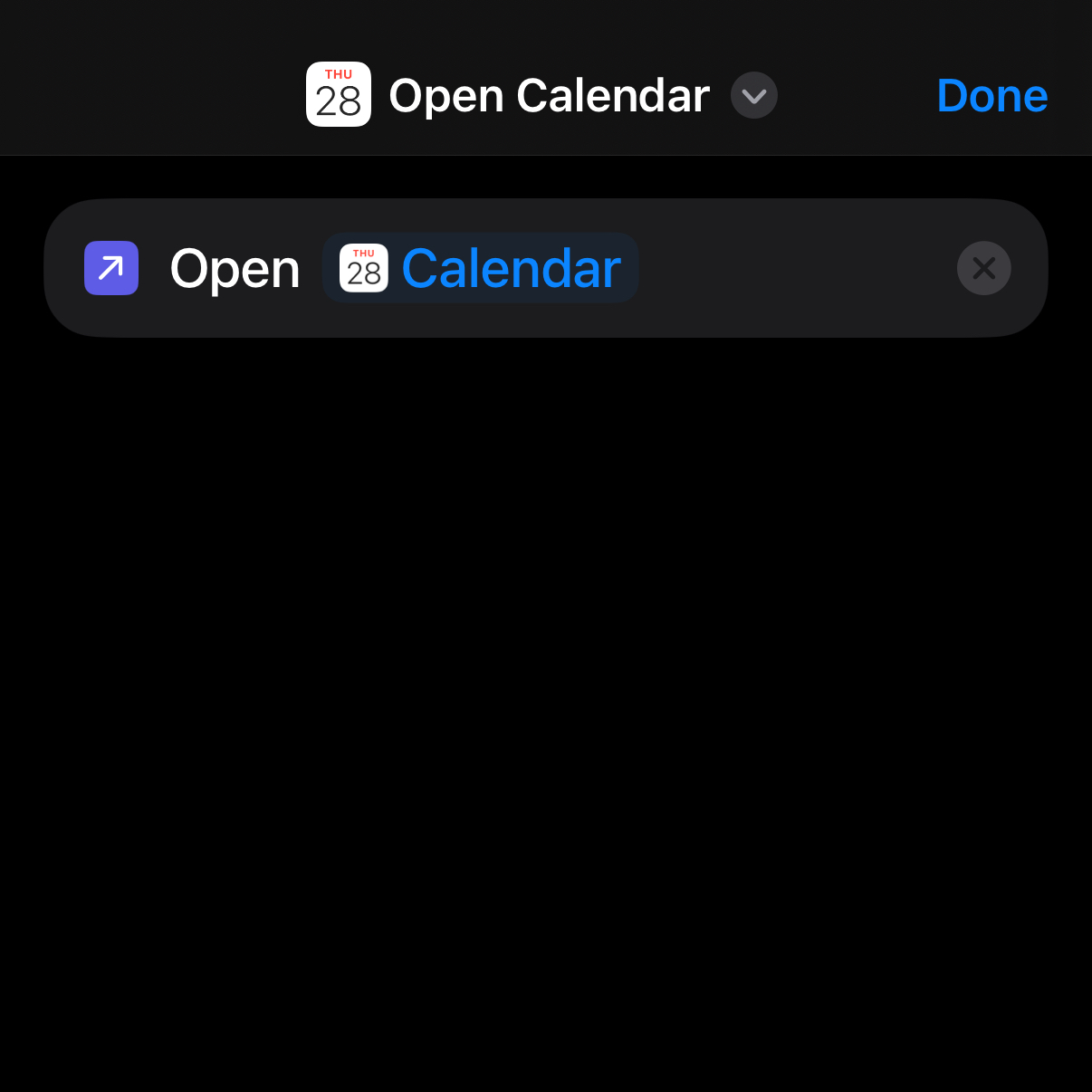
1. Create the shortcut
Open the Apple Shortcuts app
Tap + to create a new shortcut
Add the Open App action
Choose your app from the list
Name the shortcut at the top (you'll need this name in the next step)
2. Import into Blank Spaces
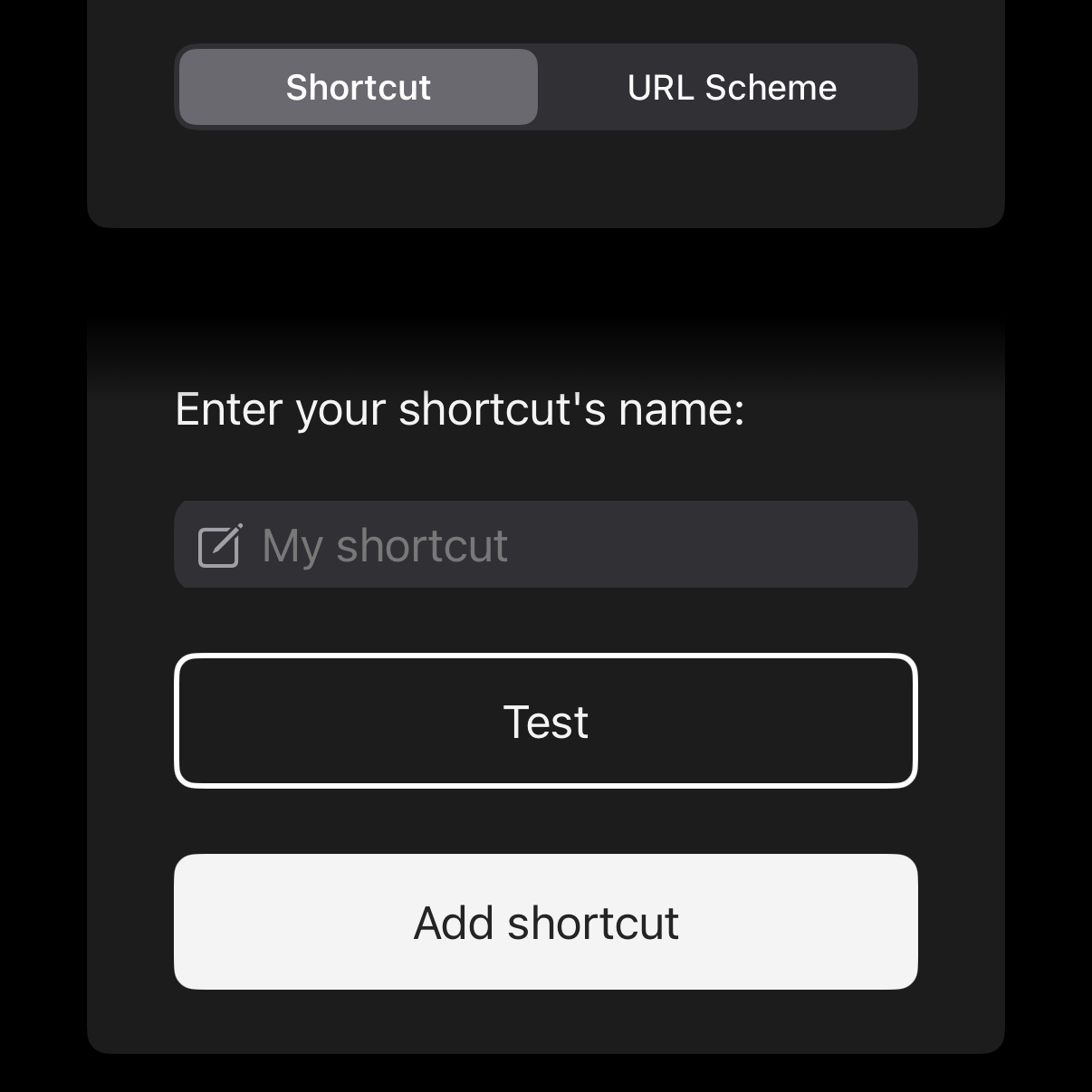
In Blank Spaces, tap +
Tap Don't see your app?
Select Custom App > Shortcut tab
Search for the shortcut name you just created
Using a deep link
Deep links (or “URL Schemes”) open a specific app or even a specific page within an app. For example, files:// opens the Files app.
1. Find the deep link
Search online for the app name + "URL scheme". Most popular apps have one. You can also check the app's website or contact the developer.
2. Import into Blank Spaces
In Blank Spaces, tap +
Tap Don't see your app?
Select Custom App > URL Scheme tab
Paste the URL scheme