How to hide the dock and widget borders (iOS 26)
Hide the dock and remove glass widget borders on iOS 26 with Blank Spaces. Step-by-step for light and dark mode.
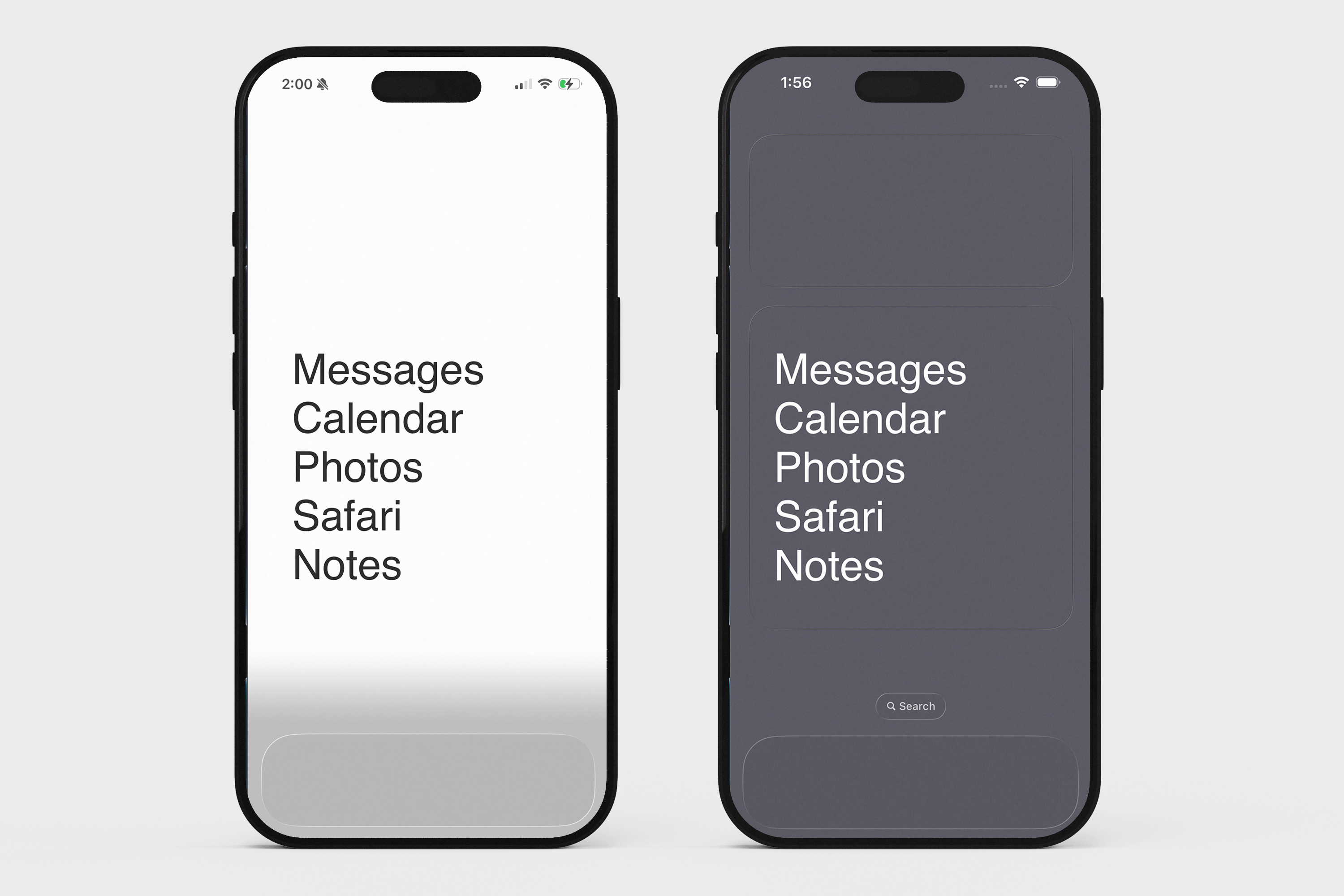
iOS 26 adds a translucent "glass" border around widgets and shows a dock at the bottom by default. A specific wallpaper + matching widget colors make both invisible, giving you a seamless Blank Spaces layout.
Light mode
Settings > Display & Brightness > set to Light.
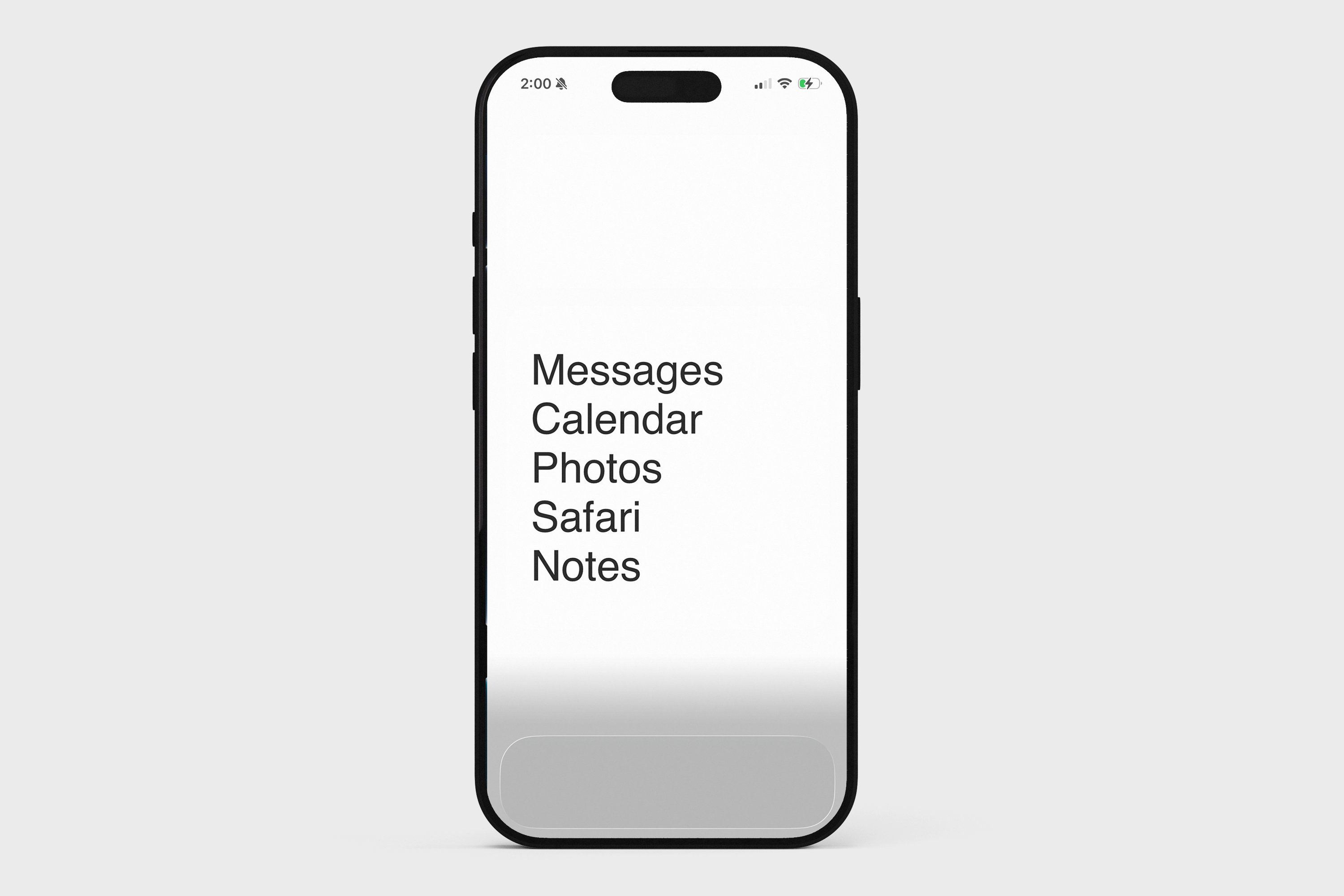
1. Set your wallpaper
Press and hold the image below to save it to your Photos.

Then on your home screen: long-press > Edit > Edit Wallpaper. Set the saved image as your wallpaper and turn Blur off.
2. Match your widget colors
In the Blank Spaces app:
Tap the paintbrush icon (top right)
Set Text color to Dark
Set Widget color to Light
Dark mode
Settings > Display & Brightness > set to Dark.
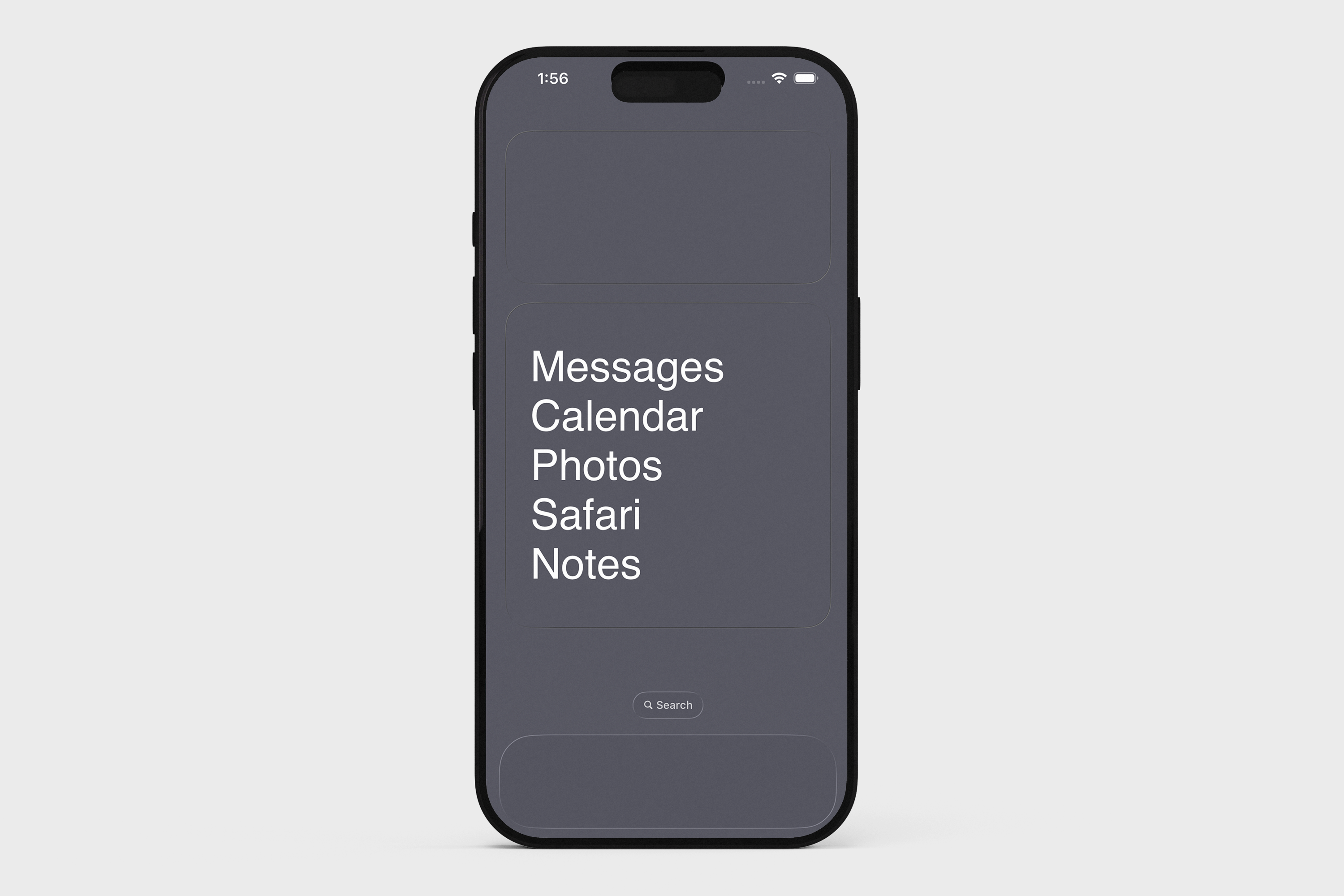
1. Set your wallpaper
Press and hold the image below to save it to your Photos.

Then on your home screen: long-press > Edit > Edit Wallpaper. Set the saved image as your wallpaper and turn Blur off.
2. Switch to large icon mode
On your home screen: long-press > Edit > Customize. Tap the Large square at the top right.
3. Turn on Reduce Motion
Open Settings > Accessibility > Motion > turn on Reduce Motion.
4. Match your widget colors
In the Blank Spaces app:
Tap the paintbrush icon (top right)
Set Text color to Light
Set Widget color to Dark