How to fix the glass borders in iOS26 in dark mode
On iOS 26, Apple introduced a translucent "glass" effect around widgets. In dark mode, these borders can remain visible even after setting up Blank Spaces. This is usually caused by a missing setting - run through the checklist below to fix it.
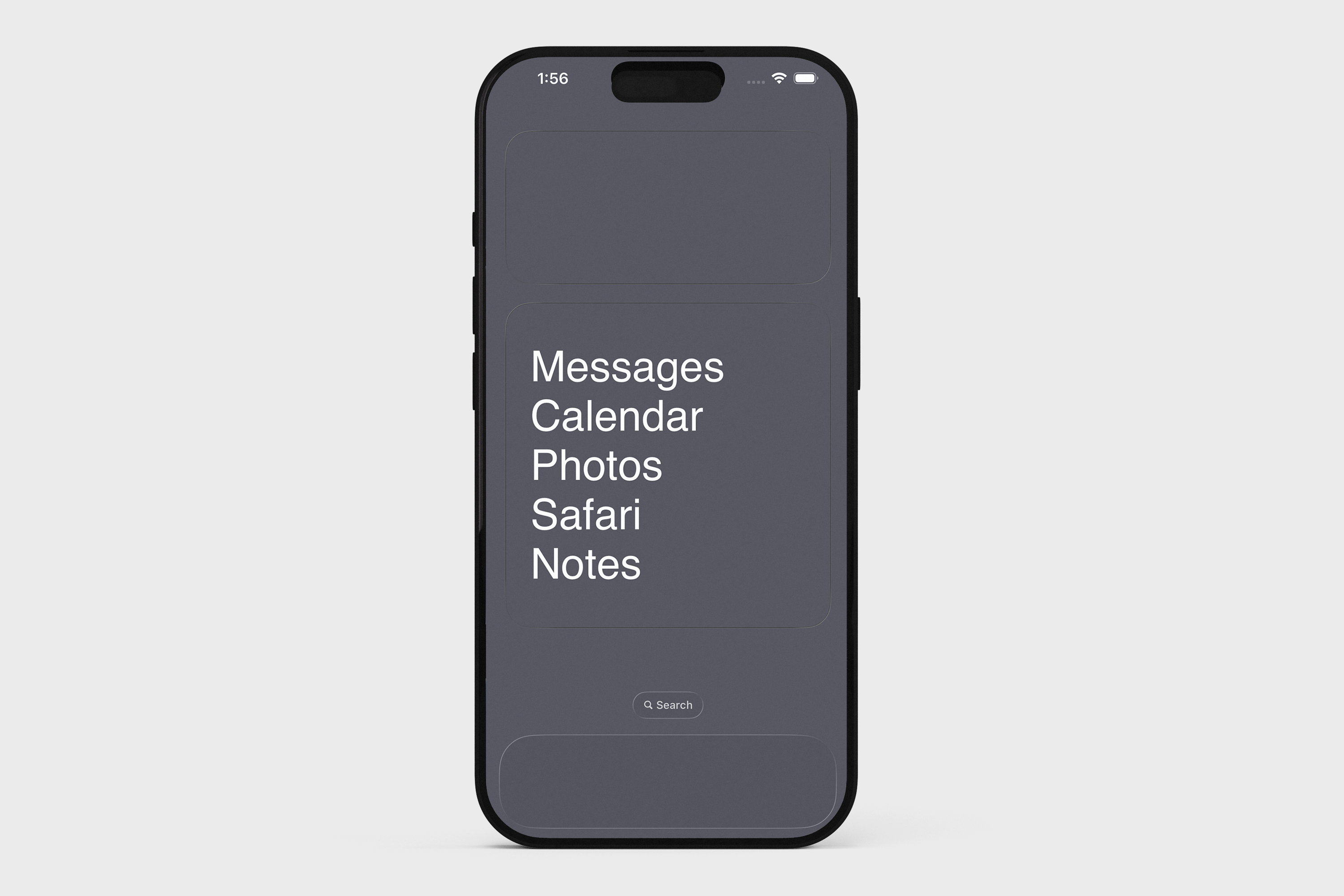
Quick checklist
Please confirm all four of these are true:
You've set the correct dark mode wallpaper (see below).
Your home screen is in large icon mode.
Reduce Motion is turned on in your iPhone settings.
You do not have a custom wallpaper set inside the Blank Spaces app.
If any of the checklist items are off, the glass borders will show. Here's how to fix each one.
1. Set the dark mode wallpaper
Press and hold the wallpaper image below to save it to your Photos.

Then apply it to your home screen:
Long-press on your home screen → tap Edit → Edit Wallpaper.
Set the saved image as your wallpaper.
Make sure Blur is off.
2. Switch to large icon mode
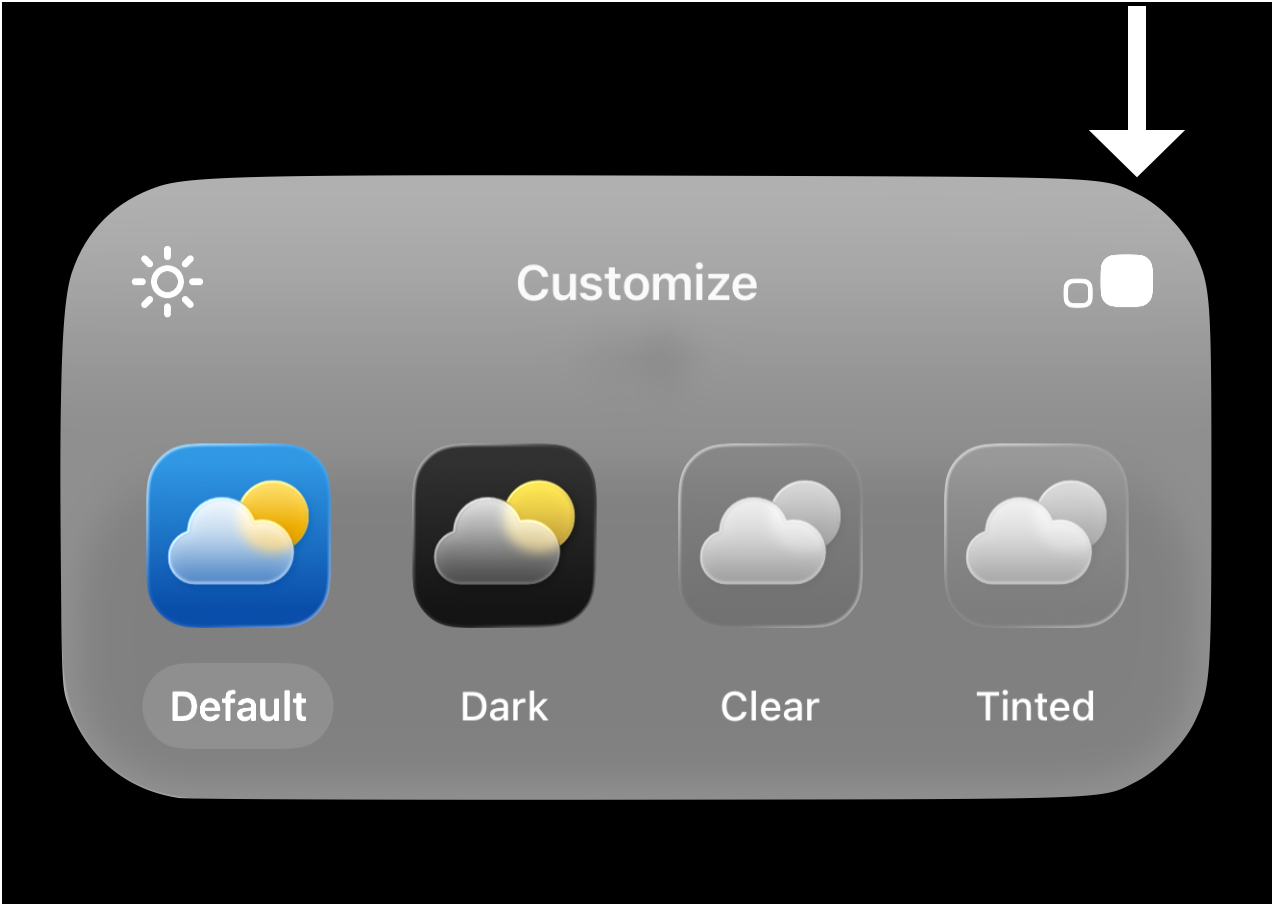
Long-press on your home screen → tap Edit → Customize.
Tap the Large square at the top right.
3. Turn on Reduce Motion
Go to Settings → Accessibility → Motion and turn on Reduce Motion.
4. Remove any custom wallpaper in Blank Spaces
If you have a custom wallpaper set inside the app, it can conflict with the dark mode setup.
Open Blank Spaces and tap the paintbrush icon (top right).
Tap Custom Wallpaper.
If a wallpaper is set, tap the X button to remove it.
Still seeing a faint outline?
Depending on your iPhone model, you may still notice a subtle border around widgets. This is an Apple-level rendering artifact in iOS 26. We're actively working on ways to minimize this across all devices and will update this page with any new fixes.